

← All articles
Neuroathletic training & performance
Free OKN app: train with moving patterns and gaze tasks
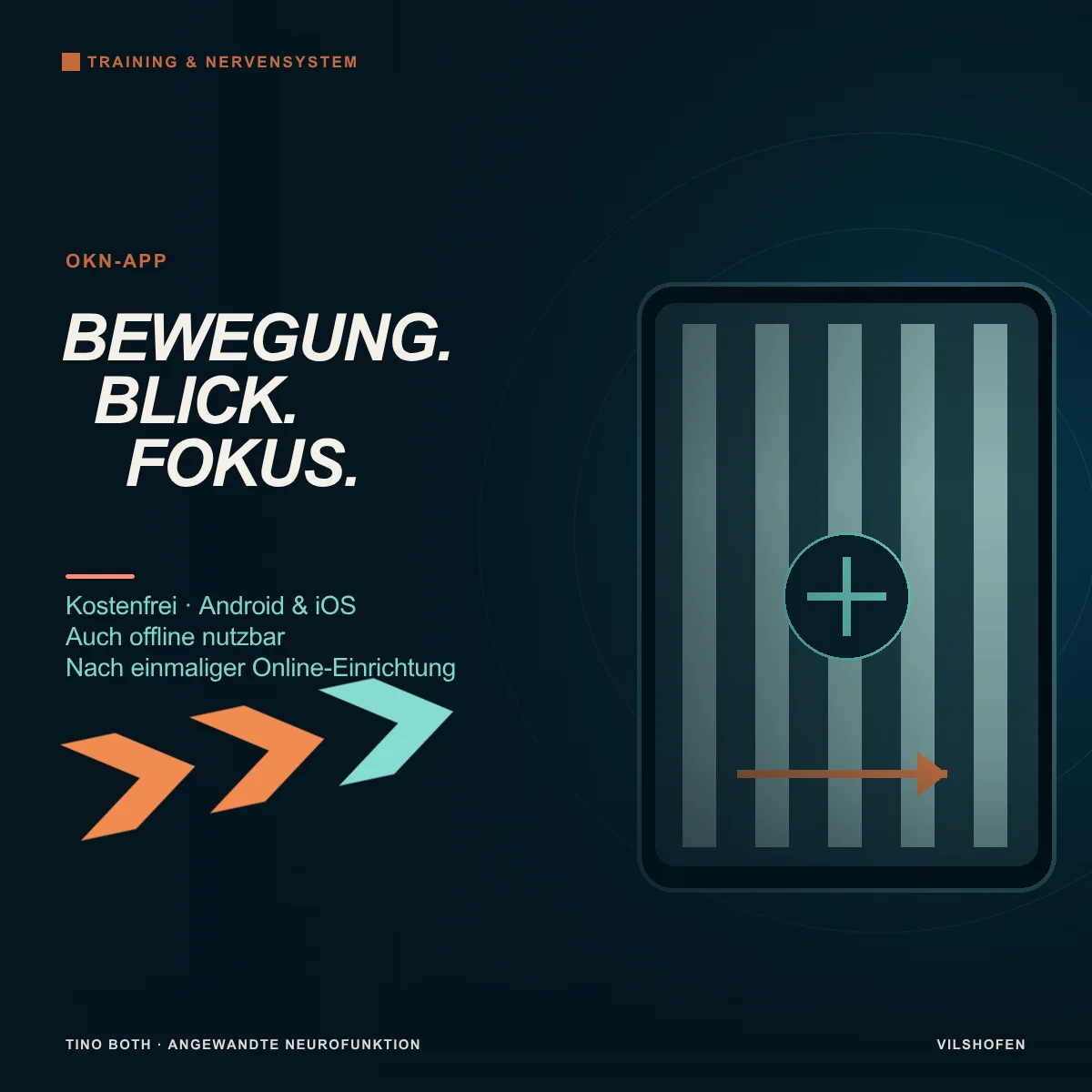
A moving background, a steady gaze point or an additional colour task: my free OKN app lets you set visual training stimuli to suit your task. Add it to the home screen on Android and iOS and use it offline after the first complete load.
In this article, I show what the app is for, what individual settings change and how to begin with simple tasks. Find it alongside my other applications in the overview of my free training apps.
Go straight to the appOpen the free OKN app. For initial orientation, choose only pattern, additional task and session duration.
What does OKN mean, and what is the training for?
OKN stands for optokinetic nystagmus: when a pattern passes by, slow tracking eye movements and rapid resetting movements can alternate. The app supplies moving stripes or dots for this. Visual flow, movement perceived across an area, is what matters.
These impressions also occur in daily life and sport: people move around you, you look along shelves or orient yourself on a playing field. The app simplifies a moving environment. Direction, speed and contrast are chosen deliberately rather than merely playing any moving video.
Depending on the task, view the pattern, hold your gaze on a cross or follow a moving target in front of the background. These are different demands. The app measures no eye movements; it supplies the adjustable training image.
Pattern: set movement and appearance
Stripes or dotsChoose Stripes for a clearly structured field or Dots for a distributed pattern. With horizontal motion, stripes are vertical; with vertical motion, they are horizontal. This keeps motion visible.
Movement direction and speedThe pattern moves left, right, up or down. Speed ranges from 10 to 1,000 px/s in steps of 5. The starting value is 120 px/s. “px/s” means screen pixels per second. The same number looks different on different screen sizes and at different viewing distances; use the same device and distance for comparisons where possible.
Width, grid and contrastStripe width or pattern grid: 16–120 px in steps of 2. For dots, the grid changes spatial arrangement; it is not a separate control solely for dot diameter.
Contrast: 10–100 % in steps of 5. Lower contrast makes differences within the pattern subtler. Narrower stripes at high speed produce more frequent changes at a given screen location.
Contrast: 10–100 % in steps of 5. Lower contrast makes differences within the pattern subtler. Narrower stripes at high speed produce more frequent changes at a given screen location.
Pattern coloursChoose from Black / White, Greyscale, Blue and Custom colours. With custom colours, define two shades using colour pickers or hex codes, for example #112233. Invalid hex entries revert to the last valid value when leaving the field.
Additional task: three different gaze tasks
Pattern onlyOnly the moving pattern appears. This is the clearest version for exploring direction, speed and appearance. You need neither name words nor follow an additional target.
Fixation crossThe cross initially stands in the centre. Your task: hold your gaze on it while the background moves. Visibility ranges from 0–100 %. The control changes the cross's size and prominence together with its background circle. 0 % is still slightly visible; 100 % is large and high-contrast.
With “Move cross” this becomes a tracking task. The cross moves independently of the pattern, horizontally, vertically or along either diagonal. Speed is 10–1,000 px/s in steps of 5. It uses the available training area with clearance from edges and controls. A moving cross demands a different gaze task from a stationary one; enable this change deliberately.
Stroop: name the text colourA colour word appears in front of the pattern. Your task is always to name the text colour aloud. If RED appears in blue text, say “Blue”. The word has no opaque box; an outline supports readability. The app does not automatically assess your answer.
All Stroop settings explained
Colour selection: Red, blue, green, yellow, orange, purple, pink, turquoise, white and black. At least two remain selected. Both words and text colours come from this shared selection. Unlike the reaction-training app, word and text-colour selections are not assembled separately here.
Word and text colour: With “Different”, they always conflict. With “Mixed”, they may match or differ. There is no separate “Matching only” setting here.
Word changes: fixed every 0.5–5 seconds, in steps of 0.5. With “Vary word changes randomly”, define a minimum and maximum duration within this range. Each new word receives a duration within your limits.
Move word: switchable on or off. For a moving word, choose horizontal, vertical or either diagonal. Word speed is 10–1,000 px/s in steps of 5; movement range is 10–100 % in steps of 5. This range limits the word's path within the field. Pattern motion, word motion and word changes are independent.
Text size: 24–80 px in steps of 2. Large, easily distinguished words help initially. Add more colours, motion or shorter changes only afterwards.
Preview, duration and controls
The preview is initially paused. Use the Play button to run the example; changing a setting pauses it again. This lets you briefly check appearance before starting training.
Under Session set 5–600 seconds in steps of 5. Quick-selection buttons offer 10, 30, 60 and 120 seconds. A three-second countdown and Start in full screen can be enabled separately. Full screen depends on browser support.
During a session, Pause and Resume stop and restart pattern, additional task and timer together. Stop ends it. On a computer: space bar = pause/resume, Esc = pause, S = stop. Switching tabs pauses automatically. Pauses do not count towards active session time.
After the session, see active time, pattern speed and direction. “Start again” repeats the configuration; “Adjust settings” returns to setup. The optional scroll measurement shows browser animation timing and unusual intervals. It evaluates technical performance, not your eyes or training performance.
Use “Restore defaults” to reset the selection. The current OKN version does not save training configuration permanently after closing or reloading. Note settings you want to use regularly. You can close the post-session support notice for the current day.
Four neuroathletic application examples
Choose a brief comparison task that suits your aim beforehand: for example three gentle arm raises or five target throws from the same distance. Repeat it after the exercise block under the same conditions. This checks which variation supports current performance. Adapt the following starting values to your movement and device. Begin sitting, with a brief duration and small visible area. Stop for dizziness, nausea, headache or visual disturbance. If light or pattern sensitivity is known, we agree on use beforehand.
1. Directed visual flow followed by a retestAim: Check how a particular direction of visual motion fits your current movement performance.
Settings: Stripes, initially rightward, 40 px/s, width 80 px, Greyscale, contrast 30 %, Pattern only, duration 5 seconds, full screen off.
Execution: Sit securely, keep your head still and view the passing stripes. Let your eyes briefly follow one stripe and reorient to the next. Do not fixate a central point, since tracking and resetting are the focus here.
Comparison: Immediately afterwards, perform the previously selected comparison movement. After a pause and another baseline test, assess leftward motion with identical settings. Right is not a universally preferred direction. If the small stimulus fits well, increase the visible area in a later block while keeping speed and duration unchanged.
Settings: Stripes, initially rightward, 40 px/s, width 80 px, Greyscale, contrast 30 %, Pattern only, duration 5 seconds, full screen off.
Execution: Sit securely, keep your head still and view the passing stripes. Let your eyes briefly follow one stripe and reorient to the next. Do not fixate a central point, since tracking and resetting are the focus here.
Comparison: Immediately afterwards, perform the previously selected comparison movement. After a pause and another baseline test, assess leftward motion with identical settings. Right is not a universally preferred direction. If the small stimulus fits well, increase the visible area in a later block while keeping speed and duration unchanged.
2. Gaze stabilisation despite moving surroundingsAim: View a target steadily while the surrounding image moves.
Settings: The previously well-tolerated pattern configuration; Fixation cross, visibility 100 %, “Move cross” off, 5–10 seconds.
Execution: Keep your head still and gaze on the cross. Your gaze should now remain on the target while the background passes. This deliberately differs from tracking in example 1.
Comparison and progression: Observe whether the cross stays clear and the background pulls your gaze away. Then check your comparison task again. A single progression can reduce cross visibility. A moving cross would be a new tracking task and is practised separately.
Settings: The previously well-tolerated pattern configuration; Fixation cross, visibility 100 %, “Move cross” off, 5–10 seconds.
Execution: Keep your head still and gaze on the cross. Your gaze should now remain on the target while the background passes. This deliberately differs from tracking in example 1.
Comparison and progression: Observe whether the cross stays clear and the background pulls your gaze away. Then check your comparison task again. A single progression can reduce cross visibility. A moving cross would be a new tracking task and is practised separately.
3. Introduce a suitable visual stimulus before a sports taskAim: Assess a brief visual training stimulus as preparation for a specific motor task.
Settings: Use direction, pattern and speed from an already suitable round; initially 5–10 seconds, without an additional task.
Execution: First throw five soft balls from a fixed distance at a marked target and note hits. Follow with the brief OKN block while sitting. End the display and repeat the same five throws from the same distance.
Evaluation: Compare hits and movement control. Repeat this comparison on further training days before making the combination a regular part of preparation. Here, the screen stimulus precedes the sports task; you do not throw while looking at the running pattern.
Settings: Use direction, pattern and speed from an already suitable round; initially 5–10 seconds, without an additional task.
Execution: First throw five soft balls from a fixed distance at a marked target and note hits. Follow with the brief OKN block while sitting. End the display and repeat the same five throws from the same distance.
Evaluation: Compare hits and movement control. Repeat this comparison on further training days before making the combination a regular part of preparation. Here, the screen stimulus precedes the sports task; you do not throw while looking at the running pattern.
4. Connect a visual background with motor StroopAim: Translate a colour decision into joint movement while processing additional visual motion.
Prerequisite: The colour-movement rule and moving pattern already work well individually.
Settings: Suitable slow pattern configuration; Stroop, red and blue, “Different”, fixed word changes every 5 seconds, Move word off, text size 64 px, duration 20 seconds.
Execution: In stable sitting, red text means a small left shoulder circle and blue text a right one. Name the text colour aloud. RED in blue text therefore means “Blue” and circle right. The word's meaning does not determine movement.
Comparison and adjustment: Check whether correct colour selection and well-controlled circles remain under the moving background. If the combination is too much, practise both tasks separately again. Word motion or additional colours come later.
Prerequisite: The colour-movement rule and moving pattern already work well individually.
Settings: Suitable slow pattern configuration; Stroop, red and blue, “Different”, fixed word changes every 5 seconds, Move word off, text size 64 px, duration 20 seconds.
Execution: In stable sitting, red text means a small left shoulder circle and blue text a right one. Name the text colour aloud. RED in blue text therefore means “Blue” and circle right. The word's meaning does not determine movement.
Comparison and adjustment: Check whether correct colour selection and well-controlled circles remain under the moving background. If the combination is too much, practise both tasks separately again. Word motion or additional colours come later.
How I use the app in my work
In my work with Applied Neurofunction I assess which visual demands relate to your concern and where functional difficulties appear. Accordingly, I choose direction, field size, speed and gaze task. I address notable functions and their interaction through suitable integrations and check the change afterwards.
The app makes agreed exercises accessible between appointments too. The aim is an appropriate demand that fits into daily life. The highest speed or longest session is not a quality criterion for this.
Use in German and English
Use the DE/EN language button to switch the interface, instructions and installation help. The choice remains saved in the browser used if it allows storage. Other apps of mine opened on the same website adopt this language. Choose it separately on other devices or in other browsers.
Free on Android and iOS, including offline
Use is free of charge and without an account. Open the desired app on my website and tap the installation button with the arrow. It opens either available installation or suitable instructions for your device and browser. No separate installation file is required.
Android: add to the home screenOpen the app, for example, in Chrome and use the installation button. Follow the offered dialogue or instructions to add it to the home screen.
iPhone and iPad: add as a web appOpen the app in Safari. Installation help guides you through Share → Add to Home Screen. Enable “Open as Web App” if offered, and confirm with “Add”.
Prepare for offline use: Fully open each desired app once with an internet connection, then through its new icon too. As long as the saved browser data remains, use it without Wi-Fi or mobile data. Check this before your first offline session. Opening the overview page alone does not set up the individual apps.
After website data is deleted, load the app online again. Updates and links to my support also need internet. Installation help also covers supported computer browsers, such as Chrome or Safari on Mac.