

← All articles
Neuroathletic training & performance
Free reaction-training app: settings, exercises and examples
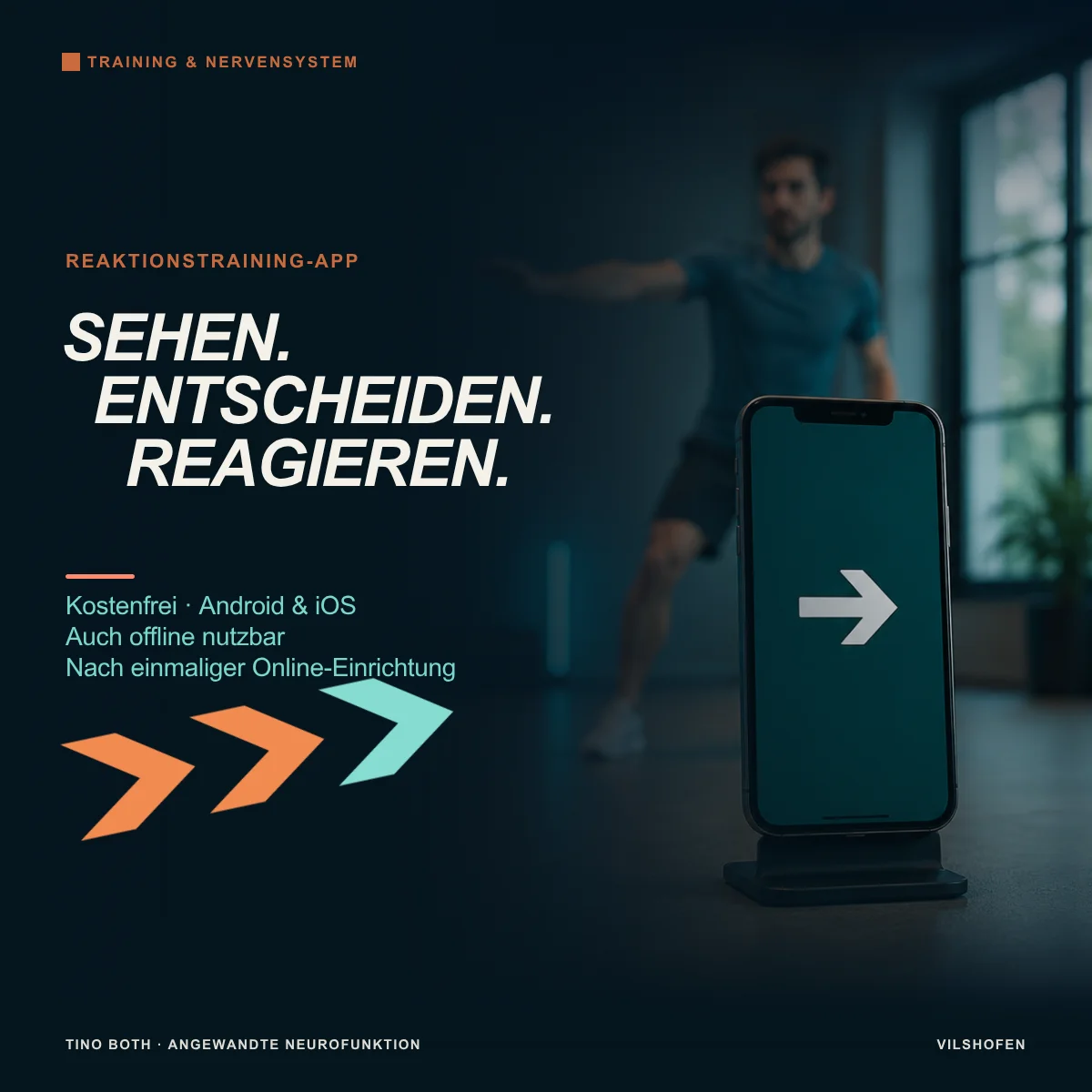
An arrow appears. You respond right. On the next signal, the arrow points right again, but this time you should respond left because the background colour has changed. My free reaction-training app lets you create exactly these tasks: see, hear, decide and perform the appropriate response.
Free, without an account and usable offline: Add the app to the home screen on Android and iOS. After the first complete load, it also works without an internet connection. It is one of my six free training apps.
The app provides changing signals. You decide which appear, how quickly they change and what you then do. Training ranges from simply naming a colour to combining memory, rule switching and movement.
Try it directlyOpen my reaction-training app here. It runs directly in your browser and can be placed on your smartphone's home screen. No account is required to begin.
Why reaction training?
Responding comprises several steps: perceive a signal, recognise its meaning, select a response and carry it out. Sometimes it also involves withholding an obvious reaction. A red signal may mean “Stop”, for example, even though you are currently prepared to move.
The app lets you practise these demands specifically. Depending on the rule, the focus may be attention, distinguishing signals, remembering a short sequence, switching rules or connecting with movement. The task comes from signal plus rule plus response. Faster signal changes are only one of several ways to make it more demanding.
Train alone, work with a partner or use the app in supervised training. Sitting tasks can use voice or hand responses. Standing tasks can add appropriate steps or coordinated movements. For sports tasks, define movements you already perform safely.
How to use the app usefullyThe app is your signal generator. It does not measure reaction time in milliseconds or automatically assess answers or movements. At the end, you see active training time and displayed signals. Observe response accuracy yourself or together with another person.
Three steps to your first training session
1. Stimulus: Choose signal type and desired symbols or colours.
2. Transition: Define when a new signal appears and whether there is a pause between them.
3. Duration: Set time or signal count, sets and rest between sets.
2. Transition: Define when a new signal appears and whether there is a pause between them.
3. Duration: Set time or signal count, sets and rest between sets.
Place the device securely where it is easily visible. Define your response rule before starting. “Start training” begins a three-second countdown, followed by the signals. The expandable guide “How to use the app · Examples” is directly beside the preview.
A simple first roundChoose Colours and enable only red and blue. Under Transition: Automatic, Random display duration off, Display duration 2 seconds, Signal pause 0 seconds. Under Duration: By signal count, 10 signals, 1 set. Your rule: red = a small left shoulder circle, blue = a right one. Perform circles without signals first; choose a longer display duration if needed. This is an introductory example; adapt tempo to controlled performance.
Stimulus: all eight signal types explained
ColoursA coloured area fills the screen. Choose from red, green, blue, orange, yellow, white, black and purple. Name colours or assign your own responses. Example: green = perform a familiar joint circle, red = remain in the starting position.
NumbersThe digits 0 to 9 are individually selectable. Also set symbol and background colours. Name the number, respond only to even numbers or remember a previous number. For a clear task, initially select just a few numbers and one fixed symbol and background colour.
ArrowsSelect each of the eight directions individually: left, upper left, up, upper right, right, lower right, down and lower left. At least one remains active. Set arrow and background colours separately. Decide beforehand whether direction, arrow colour or background determines your response.
Colour wordsA colour name appears as a written word, for example BLUE. Choose Colour words used, Text colours and Background colours separately. “Word and text colour” offers three conditions:
• Matching: word and text colour agree.
• Different: word and text colour differ.
• Mixed: both conditions are possible.
Under “Your task”, choose Name text colour or Read word. For BLUE in red text, the first answer is “Red” and the second “Blue”.
• Matching: word and text colour agree.
• Different: word and text colour differ.
• Mixed: both conditions are possible.
Under “Your task”, choose Name text colour or Read word. For BLUE in red text, the first answer is “Red” and the second “Blue”.
MixHere, numbers and arrows alternate. Choose numbers, arrow directions, symbol and background colours. Other signal types are not part of this mix. Example rule: say numbers aloud; for arrows, point your hand in the displayed direction.
Star & BoxA vertical centre line provides fixed orientation. There are 15 selectable arrangements: star alone left, centre or right; box alone left, centre or right; plus all nine combinations of their positions. Select or deselect individual variations or the groups “Star only”, “Box only” and “Star and box combined”. At least one variation remains active. When both share a position, the star sits inside the box. The centre line stays visible during signal pauses too.
LettersThe capital letters A to Z are individually selectable, alongside symbol and background colours. Name letters, respond only to certain ones or find words beginning with the displayed letter.
Image & SoundUnder “What you see” and “What you hear” choose numbers, letters, arrows or colours for each. The channels use different categories. Four categories produce twelve combinations of visible and spoken signals. Visible and spoken information are combined independently: for example the number 4 on screen and the spoken word “Blue”. Number, letter or arrow selection applies to the relevant channel. All eight colour names are always available for spoken colours. Speech output is always active in this mode.
Selection, colours and preview
For numbers, letters and colour selections, “All on” and “All off” simplify selection. “All off” clears a selection so you can then enable only the desired entries. The selection must be complete to start. For example, colour words with “Matching” require at least one selected colour word to match a selected text colour.
The app allows every combination of symbol and background colours. A light or dark outline highlights the symbol shape. Choose colours you can distinguish easily on your device. A quiet background and few symbol colours help initially. Switching to Star & Box begins with black symbols on white; switching to Colour words selects white and black backgrounds. Both can then be adjusted.
The signal preview shows examples from your current selection. “Show another example” changes the preview. For Image & Sound, the associated spoken prompt is also shown below. During training, this prompt is not displayed as an answer text. Numbers, letters, arrows and colour words adapt their size to the available screen area.
Signal tone and speech output
Signal tone and Speech output are different settings: the signal tone is a brief sound when a new signal appears. Speech output names its content. For colours it names the area colour, for numbers the number, for letters the letter and for arrows the direction. In Mix, it follows the displayed symbol.
For colour words, speech follows your task choice: it names the text colour or reads the word. If you want to find the answer yourself, leave speech output off for this task. Star & Box has no speech output. Image & Sound requires it.
Voice and speech rateWith speech output active, use an offered device voice or automatic selection matching your chosen language, German or English. The speech rate ranges from 0.6 to 1.4 in steps of 0.05; 1 is normal speed. Use “Test speech output” to hear the current preview. Offered voices depend on device and browser. The app uses an available voice matching the language. Spoken colours, letters and directions also follow your language choice.
Allow enough time for speech. When the next signal appears, any ongoing prompt is interrupted so outdated words do not continue. If words are cut off, lengthen display duration or the pause before the next signal. A reported speech error pauses Image & Sound. Check voice and volume before the session.
Transition: set tempo and signal pauses
Automatic or by tappingWith Automatic the app advances after the set display duration. With By tapping the signal remains until you tap; display duration is inactive. This suits word searches, new rules or shared tasks. A set signal pause follows tapping too. If you selected “By time” as the training end, the set still ends when that time expires.
Display duration: 0.5 to 10 secondsWithout Random display duration each signal remains visible equally long. With it, define a range through Minimum and Maximum. The app chooses a new duration within that range for each signal. Entry uses 0.1-second steps. Example: fixed 2 seconds for a steady beat; random 2 to 4 seconds for varying intervals.
Signal pause: 0 to 10 secondsThe pause between signals is the time without a training signal. At 0 seconds, the next follows immediately. Choose a fixed pause or a minimum and maximum through Random signal pause, also in 0.1-second steps. Example: 1 second display plus 2 seconds pause provides time for the response and return to the starting position.
Display duration and signal pause serve different purposes: display determines how long the stimulus is visible. The pause creates space before the next one. A movement task needs enough time for recognition, execution and a controlled return.
Duration: time, signals and sets
All settings at a glanceBy time: 10 to 1,800 seconds per set, up to 30 minutes.
By signal count: 1 to 500 signals per set.
Sets: 1 to 20.
Pause between sets: 0 to 300 seconds; this field appears for more than one set.
By signal count: 1 to 500 signals per set.
Sets: 1 to 20.
Pause between sets: 0 to 300 seconds; this field appears for more than one set.
Set time includes visible signals and signal pauses. The three-second countdown and pauses between sets do not count towards active training time. In “By signal count”, a signal counts when it appears. With automatic transitions, the last signal also remains for its full display duration; in tap mode, tapping the final signal ends the set. At 0 set pause, the next set begins immediately.
Seven neuroathletic training examples
Choose a brief comparison task that suits your aim beforehand: for example three gentle arm raises or five target throws from the same distance. Repeat it after the exercise block under the same conditions. This checks which variation supports current performance. Adapt the following starting values to your movement and device. Define movement rules yourself; the app provides signals. Example sequences explain the rule; actual order is random. Unless stated otherwise: automatic transition, one set, signal tone and speech output off.
1. Motor Stroop: deliberately reverse shoulder circlesAim: Control an ongoing movement and respond only to the decisive information.
Settings: Colour words; words and text colours both red and blue, white background; “Mixed”, task “Name text colour”; automatic every 3 seconds, signal pause 0, 10 signals, 1 set. Signal tone and speech output off.
Execution: Circle one arm within a comfortably controlled range. If word and text colour match, reverse the circle direction. If they differ, continue unchanged. RED in red text = reverse; RED in blue text = keep circling. You do not need to say the colour for this movement rule.
Comparison and progression: Check your arm raise afterwards. If needed, begin with manual signal changes by another person. Only then choose shorter display times or a more athletic movement rhythm.
Settings: Colour words; words and text colours both red and blue, white background; “Mixed”, task “Name text colour”; automatic every 3 seconds, signal pause 0, 10 signals, 1 set. Signal tone and speech output off.
Execution: Circle one arm within a comfortably controlled range. If word and text colour match, reverse the circle direction. If they differ, continue unchanged. RED in red text = reverse; RED in blue text = keep circling. You do not need to say the colour for this movement rule.
Comparison and progression: Check your arm raise afterwards. If needed, begin with manual signal changes by another person. Only then choose shorter display times or a more athletic movement rhythm.
2. Text colours control targeted joint movementsAim: Ignore the written meaning and select the correct body action from a visual stimulus.
Settings: Colour words, words and text colours orange and blue; “Different”, “Name text colour”, white background; display 4 seconds, pause 1 second, 8 signals. Speech and signal tone off.
Execution: Sit securely and lift the relevant foot slightly off the floor: orange means a small left ankle circle, blue a right one. Keep the lower leg as still as possible. BLUE in orange text therefore triggers the left ankle circle.
Comparison and progression: Before and after the block, perform three circles per side without signals and compare roundness and control. Add red as word and text colour later: red means a left shoulder circle. Master every movement individually before combining.
Settings: Colour words, words and text colours orange and blue; “Different”, “Name text colour”, white background; display 4 seconds, pause 1 second, 8 signals. Speech and signal tone off.
Execution: Sit securely and lift the relevant foot slightly off the floor: orange means a small left ankle circle, blue a right one. Keep the lower leg as still as possible. BLUE in orange text therefore triggers the left ankle circle.
Comparison and progression: Before and after the block, perform three circles per side without signals and compare roundness and control. Add red as word and text colour later: red means a left shoulder circle. Master every movement individually before combining.
3. Movement N-back: think back two signalsAim: Connect working memory and movement planning.
Settings: Numbers 1 and 2, black symbols on white; automatic every 4 seconds, pause 1 second, 10 signals. Speech off.
Execution: 1 means a left shoulder circle, 2 a right one. Perform the current movement and also say “Match” if the same number appeared two signals previously. The first two signals are for remembering only. Example 1 → 2 → 1: circle left, circle right, circle left and say “Match”.
Comparison and progression: Another person records missed matches and incorrect assignments; you also observe circle quality. Begin with a one-signal gap as an easier version. Only then add a third familiar movement pattern. Matches arise randomly; the app does not generate a predetermined N-back test.
Settings: Numbers 1 and 2, black symbols on white; automatic every 4 seconds, pause 1 second, 10 signals. Speech off.
Execution: 1 means a left shoulder circle, 2 a right one. Perform the current movement and also say “Match” if the same number appeared two signals previously. The first two signals are for remembering only. Example 1 → 2 → 1: circle left, circle right, circle left and say “Match”.
Comparison and progression: Another person records missed matches and incorrect assignments; you also observe circle quality. Begin with a one-signal gap as an easier version. Only then add a third familiar movement pattern. Matches arise randomly; the app does not generate a predetermined N-back test.
4. Arrows: gaze shifts with a reversal ruleAim: Translate a visual command into a targeted gaze shift and reverse the obvious response when needed.
Settings: Left and right arrows; black arrows, initially green background only; display 3 seconds, pause 1 second, 8 signals. Speech off.
Setup and execution: Place the device at eye level. Add a clearly visible target point on each side, about 10 cm from the screen edge. Keep your head still. From the screen, move only your eyes to the target in the arrow direction and return to the centre.
Variation: Add red as a background only in a further round: on green, look towards the arrow's target; on red, towards the opposite target. A left arrow on red leads to the right target point.
Comparison: Check eight signals with the same rule again: how often are target choice and first gaze shift correct? Do not increase target distance and tempo together.
Settings: Left and right arrows; black arrows, initially green background only; display 3 seconds, pause 1 second, 8 signals. Speech off.
Setup and execution: Place the device at eye level. Add a clearly visible target point on each side, about 10 cm from the screen edge. Keep your head still. From the screen, move only your eyes to the target in the arrow direction and return to the centre.
Variation: Add red as a background only in a further round: on green, look towards the arrow's target; on red, towards the opposite target. A left arrow on red leads to the right target point.
Comparison: Check eight signals with the same rule again: how often are target choice and first gaze shift correct? Do not increase target distance and tempo together.
5. Star & Box: select arm and leg independentlyAim: Translate two pieces of spatial information into a coordinated body response.
Settings: Initially only star left and right; later combinations with box left and right. Deselect middle positions initially. Display 5 seconds, pause 1 second, 8 signals; speech off.
Execution: In stable sitting, the star determines the side for a small shoulder circle and the box the side for a small ankle circle with the foot slightly raised. Practise star and box separately first. Star left plus box right then means circle with the left arm and right foot.
Comparison and progression: Observe whether both circles remain as controlled in combination as individually. Begin sequentially: arm first, then foot. Simultaneous execution is the progression. A harder combination only helps when you can still apply the assignment reliably.
Settings: Initially only star left and right; later combinations with box left and right. Deselect middle positions initially. Display 5 seconds, pause 1 second, 8 signals; speech off.
Execution: In stable sitting, the star determines the side for a small shoulder circle and the box the side for a small ankle circle with the foot slightly raised. Practise star and box separately first. Star left plus box right then means circle with the left arm and right foot.
Comparison and progression: Observe whether both circles remain as controlled in combination as individually. Begin sequentially: arm first, then foot. Simultaneous execution is the progression. A harder combination only helps when you can still apply the assignment reliably.
6. Image & Sound: eyes and ears give different instructionsAim: Process visible and heard information separately and translate it into two movements.
Settings: Image & Sound; visible left and right arrows, audible numbers 1 and 2; black symbols on white; display 5 seconds, pause 1 second, 8 signals. Test voice beforehand.
Execution: The visible arrow direction determines which arm makes a shoulder circle. Heard 1 means a left ankle circle, 2 a right one. A right arrow plus “One” means right arm, left foot. Begin sitting and perform the movements one after the other.
Comparison and progression: Attend to each information channel individually first, then both. Count correct assignments and observe movement control. Simultaneous circles are the next stage; shorter display times come later.
Settings: Image & Sound; visible left and right arrows, audible numbers 1 and 2; black symbols on white; display 5 seconds, pause 1 second, 8 signals. Test voice beforehand.
Execution: The visible arrow direction determines which arm makes a shoulder circle. Heard 1 means a left ankle circle, 2 a right one. A right arrow plus “One” means right arm, left foot. Begin sitting and perform the movements one after the other.
Comparison and progression: Attend to each information channel individually first, then both. Count correct assignments and observe movement control. Simultaneous circles are the next stage; shorter display times come later.
7. Letters become sports movement commandsAim: Connect visual selection decisions directly with a familiar sporting technique.
Settings: Letters V, R and U; one fixed symbol and background colour; display 4 seconds, pause 1 second, 12 signals; speech off.
Execution: Tennis example: V = forehand, R = backhand, U = overhead movement. Perform one controlled shadow movement without a ball and return to your starting stance. Use movements already learned, with enough space around you.
Comparison and progression: First check the three movements without a selection task. During the app round, correct decisions and a controlled return count. Afterwards, repeat a fixed technique task with a ball. We define suitable custom letter codes for your sport; shorter or randomly varying signal intervals come later.
Settings: Letters V, R and U; one fixed symbol and background colour; display 4 seconds, pause 1 second, 12 signals; speech off.
Execution: Tennis example: V = forehand, R = backhand, U = overhead movement. Perform one controlled shadow movement without a ball and return to your starting stance. Use movements already learned, with enough space around you.
Comparison and progression: First check the three movements without a selection task. During the app round, correct decisions and a controlled return count. Afterwards, repeat a fixed technique task with a ball. We define suitable custom letter codes for your sport; shorter or randomly varying signal intervals come later.
How to progress training appropriately
Begin with few signals and one clear rule. Then change one point at a time: more choices, a reversal rule, an additional memory task, movement or faster transitions. This shows what makes the task more demanding.
Look for correct assignment, calm execution and reliable rhythm. If you mainly guess or movement becomes rushed, simplify the rule or lengthen the time. For movement tasks, place the device securely outside your walking or stepping area. If unsteady, choose a seated variation.
Pause, results and saving settings
During training, use Pause to interrupt and Resume to continue. Stop ends the session early. Switching to another app or browser area automatically pauses training as it moves into the background.
At the end, active training time, displayed signals, signal type and number of started sets are shown. Signal pauses belong to active time; set pauses and countdown do not. Use Again to restart with the same configuration; Change settings returns to selection. Hide the personal support notice with the cross for the current day.
Use “Save settings on this device” to save current configuration in the browser used, including voice and speech rate. There is no automatic synchronisation between devices or permanent results archive. For comparisons, note task, settings and your performance observations.
Use in German and English
Use the DE/EN language button to switch the interface, instructions and installation help. The choice remains saved in the browser used if it allows storage. Other apps of mine opened on the same website adopt this language. Choose it separately on other devices or in other browsers.
Free on Android and iOS, including offline
Use is free of charge and without an account. Open the desired app on my website and tap the installation button with the arrow. It opens either available installation or suitable instructions for your device and browser. No separate installation file is required.
Android: add to the home screenOpen the app, for example, in Chrome and use the installation button. Follow the offered dialogue or instructions to add it to the home screen.
iPhone and iPad: add as a web appOpen the app in Safari. Installation help guides you through Share → Add to Home Screen. Enable “Open as Web App” if offered, and confirm with “Add”.
Prepare for offline use: Fully open each desired app once with an internet connection, then through its new icon too. As long as the saved browser data remains, use it without Wi-Fi or mobile data. Check this before your first offline session. Opening the overview page alone does not set up the individual apps.
After website data is deleted, load the app online again. Updates and links to my support also need internet. Installation help also covers supported computer browsers, such as Chrome or Safari on Mac.
For speech output, offline availability also depends on the selected device voice. Test your voice without internet once, particularly for Image & Sound. Visual signals and the brief signal tone need no online voice. On supported devices, the app keeps the screen awake during training.
How the exercises complement my work
In my work with Applied Neurofunction the suitable task for your daily life or sport matters. The app helps repeat a selected demand specifically and continue practice between appointments. Together, we define signals, rules, movements and tempo to suit your aim.
If a particular task proves notably difficult, we look more closely at the contributing functions. I assess the connections, address notable relationships through suitable integrations and then compare function again. The app provides variable training stimuli; individual selection and interpretation are part of my support.