

← All articles
Neuroathletic training & performance
Saccades & Antisaccades: a free app for gaze shifts, rules and rhythm
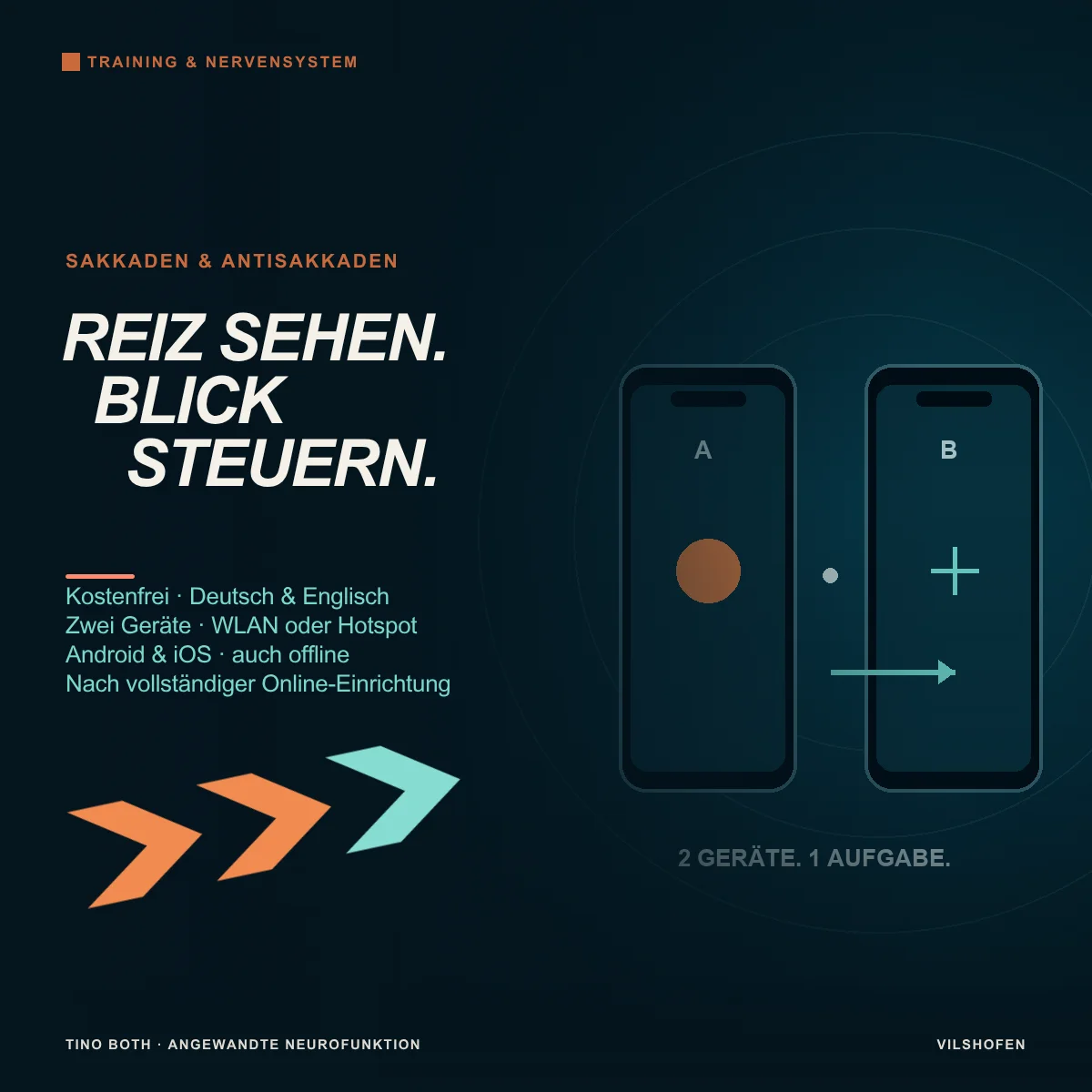
A stimulus appears on the left. Your gaze jumps left. On the next round, the opposite rule applies: the stimulus appears on the left again, but you look at the right-hand target. My free Saccades & Antisaccades app lets you create exactly these tasks on two paired devices, from simple gaze shifts to colour rules, changing symbols and audible reversal signals.
The app runs in German and English and can be used on Android and iOS. Once fully loaded online on both devices, it also works without internet access. The devices remain on the same Wi-Fi network or hotspot to connect to each other.
Go straight to the appOpen Saccades & Antisaccades for free. You can first explore the tasks in the preview. For a joint training session, then connect two devices.
What are saccades and antisaccades?
Saccades are rapid gaze shifts between targets. For example, you shift from the left point to the right while keeping your head still for this task. This differs from slowly following a moving object.
In a prosaccade you look towards the appearing stimulus. In an antisaccade you suppress that initial impulse and look in the opposite direction. In the app, the other display is your target: a stimulus on the left means looking right; a stimulus above means looking down.
This changes the demand: you need to recognise the stimulus, apply the agreed rule and make the appropriate gaze shift. Colour and symbol rules add the requirement that the correct response depends on the meaning of the signal. The app lets you adjust these demands specifically.
Why two devices?
Two displays provide spatially separated targets. Place them left and right, or above and below. Choose their distance and position to suit your task. The app does not calculate a viewing angle from this; use the same setup for comparisons. A percentage symbol size does not replace a measurement in millimetres either.
For individual stimuli, place a physical central target between the devices, for example a clearly visible point on a card. Your gaze starts there and returns between stimuli. Rhythmic gaze switching, by contrast, moves directly from display to display without stopping in the centre.
What the app providesThe app generates stimuli and controls their sequence on both devices. You or someone accompanying you observes performance. Eye movements, human reaction times and gaze errors are not automatically measured or assessed.
Pairing two devices: step by step
1. Shared network: Connect both devices to the same Wi-Fi network. Alternatively, enable a Wi-Fi hotspot on one phone and connect the other device to it.
2. Choose roles: On the controlling device, choose “A · Create connection”, and on the other “B · Join connection”.
3. Exchange codes: B scans A's automatically changing QR sections. A then scans B's response. The sequence repeats every second; “Show large QR” enlarges it.
4. Position the devices: From your perspective, A is on the left or above by default, and B on the right or below. “Swap sides” reverses this assignment.
2. Choose roles: On the controlling device, choose “A · Create connection”, and on the other “B · Join connection”.
3. Exchange codes: B scans A's automatically changing QR sections. A then scans B's response. The sequence repeats every second; “Show large QR” enlarges it.
4. Position the devices: From your perspective, A is on the left or above by default, and B on the right or below. “Swap sides” reverses this assignment.
Allow camera access for scanning. If you are not using a camera, pairing also offers short-message exchange, the full connection text or a connection file. A messenger used for this may itself require internet access.
The connection is designed for a shared local network. Two separate mobile-data connections are not an intended pairing method. The app does not need a mediation or relay server for a joint session. Of course, you can also use Wi-Fi with internet access.
Preview first, then start together
In the Training section, the preview already shows both displays without pairing. Symbols, colours, sizes and arrangement respond immediately to your settings. “Play preview” shows the sequence; with “Preview with sound” you also hear signal tones or spoken prompts. Changing a setting stops the running preview and displays the new configuration.
On small displays, “Go to preview” and “Edit settings” move between the two areas. For a joint session, A sets the options and B adopts them. Tap “Prepare this device” on both devices; a brief tone confirms audio activation. Then choose “Start together” on A. With individual stimuli, look at the central target during the countdown.
Four tasks: from simple to combined
Individual stimulus: towards the signal or the opposite sideChoose “Look at stimulus” or “Look at other target · Antisaccade”. The gaze rule remains unchanged throughout this round. After the stimulus and response time, you return to the centre, followed by the set pause. This lets you first learn the two rules separately.
Colour rule: the colour decidesAssign one colour to looking towards the stimulus and another to looking towards the opposite side. Available colours are green, yellow, blue, red, purple and white. The two rule colours must differ. The colour stimulus can appear as a colour-changing dot, a single coloured symbol or a full background area.
Symbol rule: assign letters, shapes and arrowsChoose letters, shapes, arrows or a mixture. Assign one or more symbols to each gaze direction. A symbol belongs to only one direction. Shapes include circle, triangle, square and diamond; arrows point up, right, down or left. With a custom arrow rule, your assignment counts, rather than automatically the direction the arrow points.
Rhythmic gaze switching: no pause in the centreYour gaze alternates between A and B. Tempo ranges from 20–180 BPM. One beat corresponds to one gaze shift: 30 BPM means a shift every two seconds, 60 BPM one per second. Optionally, enable an increase from the starting tempo to your chosen final tempo, also within 20–180 BPM.
Adjusting symbols, colours and sizes
For suitable tasks, choose a dot, letters, shapes, arrows, a mixture or a full coloured background. You can enter your own selection for changing letters. During the active stimulus, a letter, shape or arrow appears alone on the display without an additional ring or dot.
Stimulus size and fixation size: each 1–100 %Sizes refer to the available drawing area. The active stimulus and fixation target on an inactive display can be adjusted separately. Start with easily recognisable symbols and check both devices. Different screen sizes do not automatically produce equally sized targets at the same percentage.
One colour, a custom sequence or random coloursFor individual stimuli, symbol rules and rhythm, choose a fixed colour, a repeated custom colour sequence or random colours from that sequence. Use “Add colour” to build the sequence; tapping a colour chip removes it. Random mode avoids immediate repetitions while another colour is available. In a symbol rule, the symbol still determines gaze direction.
Colour-changing dotTwo equally sized neutral dots remain on both displays. Only the active stimulus dot changes colour, without growing. “Stimulus size” determines their shared size. No additional fixation selection is needed; it is hidden.
What remains visible on the inactive display
Under Fixation target choose nothing, a dot, a fixed letter, a fixed shape, a fixed arrow or “Randomly changing from groups”. This also applies to the opposite target during an antisaccade. A recognisable target can help you end the gaze shift clearly.
For changing fixation targets, switch the groups letters, shapes and arrows on or off individually. At least one group remains active. Letters here range from A–Z. A new symbol from the selected pool appears for each stimulus, without direct repetition on the same device. Set the fixed letter, shape or arrow selection and fixation size separately.
The active stimulus replaces the fixation symbol. With a coloured background, the selected fixation target remains visible; “Nothing” shows only the coloured area. This lets you deliberately distinguish a visible target from information supplied solely by an area.
Distraction stimulus and additional rule reversal
Distraction in the colour ruleAn optional symbol appears simultaneously on the other device. Choose its colour and letters, shapes, arrows or a mixture. The distraction colour must differ from both rule colours. This symbol is not another direction command: ignore it and follow the actual colour rule. After the stimulus duration, both displays return to the selected fixation target.
A reversal applies only to the current stimulusIn colour and symbol rules, an audible double tone can reverse the usual assignment. In the symbol rule, a special colour is an alternative. Probability ranges from 0–100 %, with 10 % preset. At 0 %, no reversal occurs; at 100 %, it applies every time. At 10 %, a brief session does not necessarily contain exactly one reversed stimulus per ten signals.
Example: X normally means “towards stimulus”, O “towards other target”. If X appears in the chosen special colour, look to the opposite side for this stimulus. A normally coloured X on the next stimulus again means “towards stimulus”. The special colour therefore must not also appear in your normal colour sequence.
Where the double tone soundsChoose both devices simultaneously, the current stimulus device, alternating A/B with every actual reversal or a fixed device, A or B. Output on both devices is the default. The source of the double tone does not determine gaze direction. With “Visual + signal tone”, it replaces the normal single tone on all devices; the tones do not overlap.
Seeing, hearing or combining both
Under Stimulus trigger there are five options: visual, signal tone from stimulus device, visual plus signal tone, spoken direction and spoken direction plus image. Colour and symbol rules require visible stimuli. Spoken directions are unavailable in rhythm mode.
A direction prompt comes from the device on the named side: “left” from the left, “right” from the right; in a vertical arrangement, above and below respectively. This remains so for antisaccades: if you hear “left” from the left device, look right. “Swap sides” accounts for this spatial assignment. Speech-only mode hides unnecessary colour options.
Choose volumes A and B independentlyFor tasks with sound, A shows two controls for device A and device B, each 0–100 %, with 70 % as default. They apply to single tone, double tone and speech. 0 % mutes the app output on that side. Each device's media volume also applies. Equal percentages do not necessarily produce equal loudness on different speakers.
After “Prepare this device”, use “Listen to direction prompts” to check the four prompts on this device. During playback, the green button reads “Stop prompts”. The sample ends after the last word or another tap. Joint sound output is synchronised, although actual speaker delay may still vary between devices.
Number, stimulus duration, response time and pauses
4–120 stimuli or gaze shiftsUse “Number of stimuli / gaze shifts” to set the session's length. The number describes the stimuli or shifts offered, rather than automatically correctly performed eye movements.
The four time controls for individual stimuliStimulus duration: 0.2–3 seconds.
Additional response time: also 0.2–3 seconds.
Both change in 0.05-second steps.
Shortest and longest central pause: each 0.4–5 seconds, in 0.1-second steps.
Equal pause limits produce a fixed pause. If the limits cross while being adjusted, the other limit follows automatically.
Additional response time: also 0.2–3 seconds.
Both change in 0.05-second steps.
Shortest and longest central pause: each 0.4–5 seconds, in 0.1-second steps.
Equal pause limits produce a fixed pause. If the limits cross while being adjusted, the other limit follows automatically.
The sequence is: stimulus → additional response time → “To centre” → pause → next stimulus. The display duration is therefore not the entire interval until the next signal. For spoken directions, the app reserves at least 1.5 seconds combined from stimulus and response time to accommodate the prompt.
The stimulus sides can alternate randomly, follow an alternating A/B sequence or be restricted to a single device. “A only” initially means A on the left or above; after “Swap sides”, that device is on the other side. Your own perspective of the setup always determines the exercise.
Six practical neuroathletic examples
Place both devices securely and choose targets you can recognise without straining your gaze position. Begin sitting, with the head still for these examples. The numbers are clear starting values to adapt to your performance. Stop the round if dizziness, headaches or double vision occur.
For a before-and-after comparison, choose a brief appropriate task, such as three gentle arm raises or a few familiar target throws. Repeat under the same conditions. Also observe the gaze task itself: correct initial gaze shift, unnecessary head movement, corrections and a clearly identifiable target. A brief difference is initially an observation to inform your next exercise decision.
1. Towards the stimulus: make a clear gaze shiftSetup: Two devices at the same height, central target between them.
Settings: Individual stimulus, “Look at stimulus”, visual, dot in a fixed, easily recognisable colour; fixation target: dot. 8 stimuli, random sides, stimulus duration 0.6 seconds, response time 0.8 seconds, pause 1–2 seconds. Additional rules off.
Task: Start at the central target. As soon as the stimulus appears to one side, shift your gaze to that display. At “To centre”, return to the physical central target.
Observation: Do you find the target directly? Does your head stay still? Adjust distance, size or tempo first before adding another rule.
Settings: Individual stimulus, “Look at stimulus”, visual, dot in a fixed, easily recognisable colour; fixation target: dot. 8 stimuli, random sides, stimulus duration 0.6 seconds, response time 0.8 seconds, pause 1–2 seconds. Additional rules off.
Task: Start at the central target. As soon as the stimulus appears to one side, shift your gaze to that display. At “To centre”, return to the physical central target.
Observation: Do you find the target directly? Does your head stay still? Adjust distance, size or tempo first before adding another rule.
2. Antisaccade: redirect the initial gaze impulseSettings: Same setup and timing as example 1. Change only the gaze task to “Look at other target · Antisaccade”. The fixation target stays visible on the opposite side.
Task: When the stimulus appears on the left, shift your gaze directly from the centre to the right display. Right means left. Avoid looking at the stimulus first and only then correcting.
Comparison: Someone accompanying you observes whether the first gaze shift goes to the agreed side. For an easier introduction, restrict stimuli to one device initially, then return to random sides.
Task: When the stimulus appears on the left, shift your gaze directly from the centre to the right display. Right means left. Avoid looking at the stimulus first and only then correcting.
Comparison: Someone accompanying you observes whether the first gaze shift goes to the agreed side. For an easier introduction, restrict stimuli to one device initially, then return to random sides.
3. Colour rule: decide rather than always respond identicallySettings: Colour rule; green = towards stimulus, blue = towards other target. Display: “Colour-changing dot”, stimulus size for example 20 %. 8 stimuli, random sides, stimulus duration 0.8 seconds, response time 1 second, pause 1–2 seconds. Distraction and additional reversal off.
Task: Green dot left: look left. Blue dot left: look right. Colour determines the response; position alone is no longer enough.
Progression: Once the rule works reliably, add a distraction stimulus in a third colour. Keep timing and basic rule unchanged. This shows what the distraction changes.
Task: Green dot left: look left. Blue dot left: look right. Colour determines the response; position alone is no longer enough.
Progression: Once the rule works reliably, add a distraction stimulus in a third colour. Keep timing and basic rule unchanged. This shows what the distraction changes.
4. Symbol rule with a specific exceptionBasic task: Symbol rule, letters: X = towards stimulus, O = towards other target. Normal stimulus colour: white, fixation target: dot; 8 stimuli, random sides, stimulus duration and response time each 1 second, pause 1–2 seconds. Practise first without additional reversal.
Extension: Choose red as the special colour and 10 % reversal probability. Red is not part of the normal colour sequence.
Task: White X left = look left. Red X left = look right. White O left = look right, red O left = look left. The exception ends after this stimulus.
Alternative: In a separate round, replace the special colour with the double tone. Its output side is not a direction cue. The short series need not contain exactly one reversal.
Extension: Choose red as the special colour and 10 % reversal probability. Red is not part of the normal colour sequence.
Task: White X left = look left. Red X left = look right. White O left = look right, red O left = look left. The exception ends after this stimulus.
Alternative: In a separate round, replace the special colour with the double tone. Its output side is not a direction cue. The short series need not contain exactly one reversal.
5. Switch rhythmically and name the target symbolSettings: Rhythmic gaze switching, horizontal, 30 BPM without tempo increase, 8 gaze shifts; visual, letters selected from A, B, C and D, fixed colour, fixation target: dot.
Task: Switch directly from display to display on the beat and name the letter at the target you are viewing aloud. There is no stop at the centre. At 30 BPM, you have two seconds until the next gaze shift.
Comparison: Can you name the letter while moving your gaze? If needed, then try a separate round without naming. Only afterwards change the tempo. The app does not record your voice. Selected symbols may also remain visible in sound-only mode.
Task: Switch directly from display to display on the beat and name the letter at the target you are viewing aloud. There is no stop at the centre. At 30 BPM, you have two seconds until the next gaze shift.
Comparison: Can you name the letter while moving your gaze? If needed, then try a separate round without naming. Only afterwards change the tempo. The app does not record your voice. Selected symbols may also remain visible in sound-only mode.
6. Combine spatial hearing with the opposite ruleSettings: Individual stimulus, antisaccade, “Spoken direction”, horizontal setup, fixation target: dot; 8 stimuli, random sides, stimulus duration 0.8 seconds, response time 0.8 seconds, pause 1–2 seconds. Check both volumes before starting.
Task: “Left” comes from the left device: look at the right target. “Right” comes from the right: look left. The combined 1.6 seconds of stimulus and response time allow the required minimum time for the prompt.
Variation: Practise “Look at stimulus” first if the spatial assignment is unfamiliar. A later vertical setup uses the same rule with above and below. Change setup and gaze rule in separate steps.
Task: “Left” comes from the left device: look at the right target. “Right” comes from the right: look left. The combined 1.6 seconds of stimulus and response time allow the required minimum time for the prompt.
Variation: Practise “Look at stimulus” first if the spatial assignment is unfamiliar. A later vertical setup uses the same rule with above and below. Change setup and gaze rule in separate steps.
Save and recall your own drills
Under “My drills · Save locally” enter a name and choose “Save drill”. Selecting a saved drill restores its configuration. This is convenient for a clear setup such as “Slow horizontal antisaccades” or “Rhythm with letters 30 BPM”. Up to 100 drills are possible.
Saving a selected drill again updates it. For an additional variation, first choose “New drill” and give it its own name. Names already in use are not silently overwritten. “Delete drill” removes the selected entry after confirmation.
The library remains exclusively in this device's local browser or app storage under this website address. There is no cloud synchronisation. B receives the values for the current session, but no permanent copy of A's drill library. Deleting browser data also deletes saved drills. Make an additional note of particularly important configurations.
Stopping, interruptions and the next round
“Stop on both devices” ends the session from A or B. Moving into the background, loss of contact or detected output delays also end it. Interrupted sessions never restart by themselves. Check settings and restore readiness or pairing if needed.
Keep both apps visibly open during the session. The screen is kept awake where possible. A real reload or terminated app process disconnects the devices. After brief interruptions, the app checks connectivity; a fully lost connection is paired again. After normal completion, you remain directly in Training and can prepare the next round.
German and English, including spoken prompts
DE / EN beside the installation button switches the interface. Your language choice is saved, as in the other apps on the same website. Settings and custom drill names remain; names you choose yourself are not automatically translated.
For a joint session, the language on device A determines the spoken directions. B can display its interface independently. German and English direction prompts are included as local audio files and are available offline once fully loaded.
Free on Android and iOS: offline with a local network
You use the app free of charge and without an account directly in your browser. The installation button opens the appropriate installation or instructions for your device. On Android, add it to the home screen in a supported browser. On iPhone and iPad, in Safari choose Share → Add to Home Screen.
Preparing both devices for offline useFirst open the app online on both devices and wait on each for “Saved offline”. Then also check startup through the installed app icon. For a joint session, continue connecting both devices to the same Wi-Fi network or hotspot. The network need not provide internet access. Saved app data must remain on both devices.
After an update, reload the app online on both devices, then close all open views of this app, including installed views, before reopening it. Both devices need the same app version. Do not delete browser data to update, so that your drills are preserved. Links to my website or appointment booking still need internet access.
How the app complements my work
In my work with Applied Neurofunction I investigate how perception, orientation and movement work together. If functional difficulties appear, we choose suitable integrations and then reassess what changes in your performance.
This app helps precisely set and recall a selected gaze task. Together, we determine the arrangement, gaze direction, rule, stimulus type and dose that suit your aim. Saved drills make it easier to continue practising a task developed together between appointments. The connection with what you want to manage better in everyday life and sport remains central.
Try it nowOpen Saccades & Antisaccades for free
Discover all free training apps
Arrange a free initial telephone consultation
Discover all free training apps
Arrange a free initial telephone consultation
```