

← All articles
Neuroathletic training & performance
Visual Vertical: compare your perceived vertical with a free app
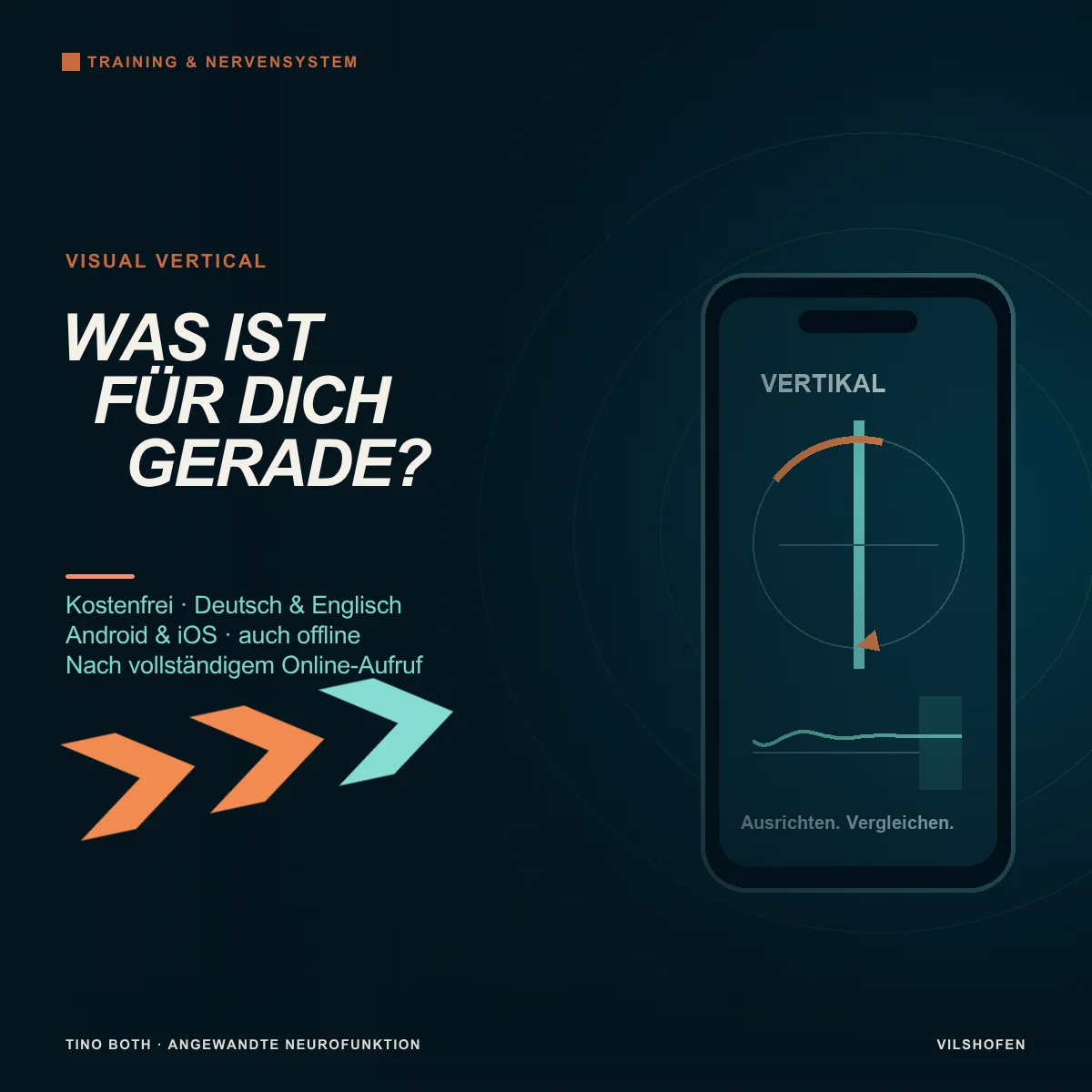
A line looks upright to you. When its angle is revealed, it turns out you tilted it slightly left. On the next attempt, you approach from the other side. How similar is your setting? With my free Visual Vertical app, called “Vertical” in the app for short, you can set your perceived vertical and horizontal and compare repetitions.
The app is one of my six free applications. It runs in German and English and, after setup, can also be used offline on Android and iOS. Your device needs enabled motion sensors for angle measurement.
Go straight to the appOpen Visual Vertical for free. Start with the device check. Then choose orientation, eye condition and measurement duration.
Why compare your perceived vertical?
Door frames, walls and other lines indicate what is upright in daily life. Without these orientation aids, the task becomes more interesting: you align a line according to your own impression. This subjective visual vertical is the upright direction you perceive. Similarly, you can set your perceived horizontal.
In neuroathletic work, this provides a specific comparison of your spatial orientation. We observe how consistently you align the line and whether the setting changes under different conditions. The app records the phone's tilt. It measures neither eye movements directly nor the function of an individual balance organ.
Before the first measurement: check sensors and reference
1. Enable motion sensorsOpen the device check and allow sensor access if your browser asks. Angle measurement is unavailable on a device without suitable or enabled motion sensors.
2. Use a true verticalHold the phone still along an independently checked vertical reference, for example a plumb line. Holding a phone upright by feel is insufficient. Record the reference value for the current session and perform the cross-check described in the app.
3. Keep the setup consistentCheck the display while holding still and after repositioning along the same reference. In the bucket setup, also check that the phone is securely attached. After changing the setup or obtaining unusual readings, begin comparison again with the device check.
All basic settings explained
Orientation: vertical or horizontalVertical: Adjust the line until it looks upright to you.
Horizontal: Adjust it until it looks horizontal to you.
First compare repetitions within the same orientation.
Horizontal: Adjust it until it looks horizontal to you.
First compare repetitions within the same orientation.
Eye condition: both, left or rightChoose both eyes open, left eye only open or right eye only open. For a one-eye condition, cover the other eye without pressure. The selection records your task; the phone does not check which eye is open.
Measurement duration: 10, 20 or 30 secondsBefore each measurement, you have five seconds to position yourself. The chosen measurement time follows. For a new task or control by another person, 20 or 30 seconds is a clear starting point. Reach the desired position about two seconds before the end if possible and hold it until completion.
Aligning the line: how an attempt works
Start from a slightly tilted position. Rotate the phone, or the bucket with the securely mounted phone, until the line appears straight to you. The live angle value stays hidden during measurement. This lets you follow your perception without relying on a number. After measurement, the app shows the evaluated angle and tilt direction.
Begin the next attempt from a different starting tilt. If you start with the line already suitably aligned, you skip an important part of the task: finding the orientation yourself. Keep head position, distance, device setup and task rule as similar as possible for a comparison.
The bucket test: remove external orientation lines
Attach the smartphone to the bottom of a suitable bucket with as uniform an interior as possible. Look inside so the surroundings offer no additional lines for alignment. Grooves, markings or prominent edges inside may also provide orientation. Cover them or use an appropriately plain bucket. The attachment must remain secure during rotation.
Practise in stable sitting first. Another person can rotate the bucket slowly and respond when you say “Stop”. Alternatively, hold and rotate it yourself. These are different conditions: self-rotation adds movement of your hands and arms. Record which version you use for a measurement series. Setup instructions are directly in the app.
Why the final two seconds matter
The app records the sensor trace during measurement. For the final angle, it uses the last two seconds and gives brief outliers less weight. This makes a small jolt less likely to determine the result alone. Significant continued rotation or larger fluctuations can nevertheless produce an error message.
Align the line in time and hold it still at the end. Evaluation cannot turn movement at the end into a stable final position. If too few usable sensor readings are recorded or measurement is interrupted, start the attempt again.
Result, trace graph and measurement series
Angle and tilt directionAfter each valid attempt, you see your set deviation and its direction. Consider several repetitions together. One decimal place describes the app's display; it is not a guaranteed measurement accuracy.
Reading the trace graphThe graph shows the sensor trace, a smoothed trace and the evaluation window. You can view the whole measurement or only the final two seconds. This shows, for example, whether you found a steady position early or made corrections just before the end.
Group comparable repetitionsThe app groups measurements by orientation, eye condition, duration and reference. Compare individual values, mean and variation. A mean near zero can also arise when some attempts deviate left and others right. Individual directions and variation therefore belong in the comparison.
Three examples for neuroathletic practice
1. Find the same vertical from two directionsSetup: Checked bucket setup, stable sitting, both eyes open, vertical line, 20 seconds.
Sequence: Another person alternates starting from a slight right and left tilt and rotates slowly on your instruction. Perform, for example, three attempts per starting direction. Hold the found position still for the final two seconds.
Observation: Do you reach a similar position regardless of the start? Note the starting direction alongside app values. The number is a practical comparison scheme, not a performance norm.
Sequence: Another person alternates starting from a slight right and left tilt and rotates slowly on your instruction. Perform, for example, three attempts per starting direction. Hold the found position still for the final two seconds.
Observation: Do you reach a similar position regardless of the start? Note the starting direction alongside app values. The number is a practical comparison scheme, not a performance norm.
2. Compare both eyes and individual eyesSetup: Same reference, posture, orientation and duration as before.
Sequence: Repeat the scheme first with both eyes open, then with only the left and only the right eye open. Alternate starting tilt within each condition. Cover the other eye without pressure.
Observation: Compare repeatability and direction within each group. We consider a differing setting in relation to other functions. The angle alone does not establish a diagnosis.
Sequence: Repeat the scheme first with both eyes open, then with only the left and only the right eye open. Alternate starting tilt within each condition. Cover the other eye without pressure.
Observation: Compare repeatability and direction within each group. We consider a differing setting in relation to other functions. The angle alone does not establish a diagnosis.
3. Accompany a selected integration with a retestBefore: In our work together, choose a measurement condition and record several repetitions. Add a suitable comparison task, for example three gentle arm raises or a familiar standing position.
Between: Perform an individually selected integration, such as an already assessed gaze task or targeted joint movement.
After: Repeat the same measurement condition and movement task. Angle, variation and performance are considered together. The brief comparison helps selection; whether a change persists in daily life is checked through further appointments and practice phases.
Between: Perform an individually selected integration, such as an already assessed gaze task or targeted joint movement.
After: Repeat the same measurement condition and movement task. Angle, variation and performance are considered together. The brief comparison helps selection; whether a change persists in daily life is checked through further appointments and practice phases.
Save measurements: two CSV exports
Download the measurement series as CSV and additionally export the trace of an individual measurement. The series records repetition results; the trace file allows closer inspection of sensor data. Both files open in spreadsheet software.
For your record: Reference and measurement series remain only in the open session. Export the data before closing or reloading. Also note setup, starting direction, who rotated the bucket and which exercise occurred between comparison blocks. The app does not record these observations automatically.
Use in German and English
Use the DE/EN language button to switch the interface, instructions and installation help. The choice remains saved in the browser used if it allows storage. Other apps of mine opened on the same website adopt this language. Choose it separately on other devices or in other browsers.
Free on Android and iOS, including offline
Use is free of charge and without an account. Open the desired app on my website and tap the installation button with the arrow. It opens either available installation or suitable instructions for your device and browser. No separate installation file is required.
Android: add to the home screenOpen the app, for example, in Chrome and use the installation button. Follow the offered dialogue or instructions to add it to the home screen.
iPhone and iPad: add as a web appOpen the app in Safari. Installation help guides you through Share → Add to Home Screen. Enable “Open as Web App” if offered, and confirm with “Add”.
Prepare for offline use: Fully open each desired app once with an internet connection, then through its new icon too. As long as the saved browser data remains, use it without Wi-Fi or mobile data. Check this before your first offline session. Opening the overview page alone does not set up the individual apps.
After website data is deleted, load the app online again. Updates and links to my support also need internet. Installation help also covers supported computer browsers, such as Chrome or Safari on Mac.
How Visual Vertical complements my work
In my work with Applied Neurofunction I investigate which functional difficulties influence your orientation and movement. Through targeted integrations, I address notable connections and check function again. Visual Vertical can provide a clearly defined task setup and visible record for this.
Task selection and interpretation of results come from your overall picture. We connect looking at the line with what matters to you: orienting yourself better in daily life and sport and organising your movements appropriately.